
Looking for a simple way to watch your IPTV channels on a smart TV, phone or computer? OTT Player (also written OttPlayer) is a free IPTV player that lets you manage your playlists from one website and watch them on almost any device. In this guide we explain what OTT Player is, which devices it supports and how to set it up step by step. A short video walkthrough is included below.
Watch: OTT Player setup in 5 steps
What is OTT Player?
OTT Player is an app for watching IPTV that you already have from your internet provider or another legitimate source. The app itself does not contain any TV channels: you need your own M3U/M3U8 playlist. Its biggest advantage is central control: you upload your playlist once on the OTT Player website, and every device linked to your account shows the same channels.
According to its app store listings, the app supports streaming protocols such as HLS, RTSP, UDP and RTMP, works with M3U8 playlists, lets you manage channel icons and shows no ads.
Note: there is also a separate Android app called “OTT Player” by another developer that works without an account. This guide covers the classic OttPlayer with an online account.
Which devices support OTT Player?
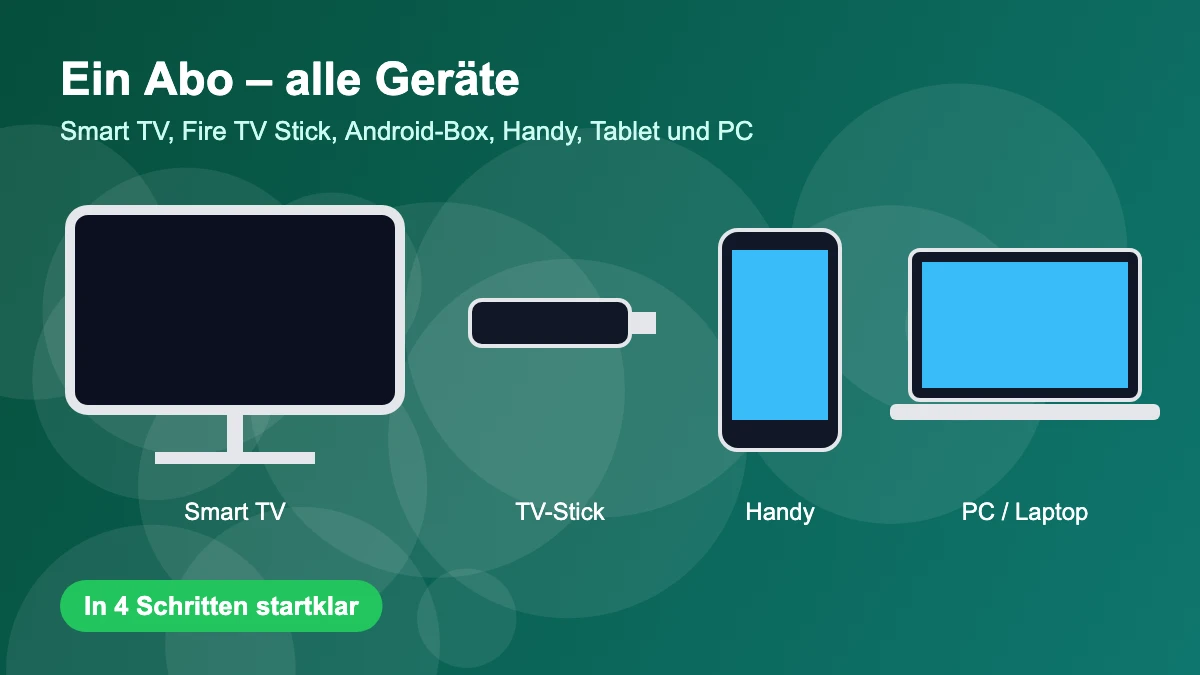
- Smart TVs: Samsung, LG and Android TV (search for “OttPlayer” in the TV’s app store).
- Phones and tablets: Android and iPhone/iPad.
- Apple TV
- Windows PC: available in the Microsoft Store.
- Set-top boxes and Android TV boxes
How to set up OTT Player step by step
- Create a free account on the official OTT Player website (ottplayer.tv).
- Install the app on your device from its app store.
- Sign in in the app with the same email and password. Your device now appears in your online account.
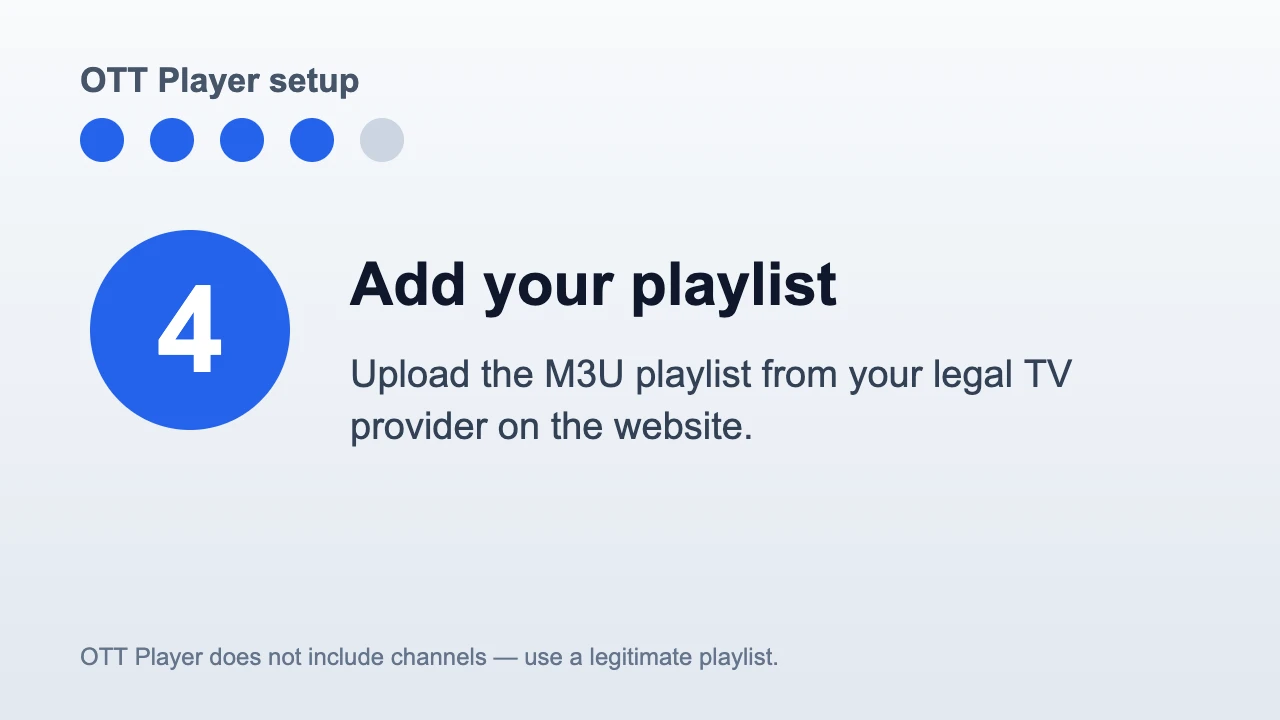
- Add your playlist: on the website, open the playlists section and upload your M3U file or paste its URL. Give the playlist a name.
- Link the playlist to your device in your account, then open the app and start watching.
OTT Player tips
- One account for all devices: change your playlist once on the website and all linked devices update.
- Add an EPG: if your provider offers an EPG (programme guide) link, add it so you see what is on.
- Use a wired connection: LAN is more stable than Wi-Fi for live TV.
- Keep the app updated: updates fix bugs and crashes on smart TVs.
Troubleshooting: common problems and fixes
| Problem | Likely cause | Fix |
|---|---|---|
| No channels in the app | Playlist not linked to this device | Link the playlist to the device in your online account, then restart the app |
| Channels load but do not play | Expired or wrong playlist URL | Ask your provider for a fresh M3U link and update it on the website |
| Picture freezes or buffers | Slow or unstable Wi-Fi | Use a LAN cable, close other downloads, restart your router |
| No programme guide | EPG missing | Add the EPG link from your provider to the playlist settings |
| App closes on the TV | Old app version | Update the app or reinstall it from the TV’s app store |
If a problem stays after these steps, test the same playlist in another player such as VLC. If it does not work there either, the issue is with the playlist, not with the app.
OTT Player alternatives
If this app does not suit you, popular alternatives include IBO Player, IPTV Smarters Pro, TiviMate (Android) and VLC. We compare them in our guide to the best 4K IPTV players and in Best IPTV free player.
Frequently asked questions about OTT Player
Is OTT Player free?
Yes, the app and the online account are free to use. You only need your own playlist.
Does OTT Player include channels?
No. It is only a player. You need a legitimate playlist from your provider.
Can I use OTT Player on a Samsung or LG TV?
Yes. Search for “OttPlayer” in the Samsung or LG app store, install it and sign in with your account.
Why does my playlist not show on my TV?
Check that the playlist is linked to that device in your online account, then restart the app.
Conclusion
This free player is a lightweight way to watch your own IPTV playlist on many devices, with all settings managed from one website. Create an account, install the app, add your playlist and link it to your device — that is all. Need help with a playlist or your subscription? Contact our support or see our plans.
Sources
Our plans: 1 Month IPTV Subscription (€19.99) · 3 Month IPTV Subscription (€35.99) · 6 Month IPTV Subscription (€45.99) · 12 Month IPTV Subscription (€59.99)